
Your camera roll probably holds thousands of photos you forgot about – duplicate selfies from that perfect shot attempt, blurry concert videos, and random screenshots that seemed important at the time. If you’re a smartphone user drowning in digital clutter, you’re not alone in wondering how to reclaim storage space without spending hours manually sorting through every image.
AI-powered photo cleaning tools can automatically detect duplicate and blurry photos in seconds, saving you from the tedious task of scrolling through years of memories. These smart apps use machine learning to identify similar images, assess photo quality, and flag unnecessary files for deletion.
We’ll explore how photo clutter secretly drains your phone’s performance and storage, then walk you through exactly how AI photo cleaning tools work their magic to organize your camera roll. You’ll also discover the must-have features that separate basic photo apps from powerful AI organizers that can transform your cluttered gallery into a streamlined collection.
The Hidden Cost of Photo Clutter on Your Device

Storage Space Drain Slowing Down Your Phone Performance
Your camera roll might be silently sabotaging your phone’s performance. Every duplicate photo and blurry shot takes up valuable storage space, and when your device runs low on memory, everything slows down. Apps take longer to open, photos load sluggishly, and even basic functions like texting can lag.
Most smartphones need at least 10-15% of their storage capacity free to operate smoothly. When thousands of unnecessary photos push your device beyond this threshold, the operating system struggles to manage memory efficiently. Your phone starts working overtime just to perform simple tasks, creating a frustrating user experience that could easily be avoided.
The problem compounds over time. What starts as a minor slowdown gradually becomes a major performance issue as your photo collection grows unchecked.
Time Wasted Scrolling Through Duplicate Memories
Scrolling through hundreds of nearly identical shots searching for that one perfect photo eats away at your day. Picture this: you’re trying to show someone a specific photo from last month’s vacation, but you have to swipe through 47 similar beach sunset shots first.
Research shows the average smartphone user spends 2-3 minutes per day just looking for specific photos. That adds up to over 18 hours per year – time that could be spent creating new memories instead of hunting through digital clutter. When your camera roll contains multiple versions of the same moment, finding the best shot becomes an unnecessary treasure hunt.
Difficulty Finding Important Photos When You Need Them
Important photos get buried under layers of digital debris. Wedding photos hide behind dozens of accidental pocket shots. Screenshots of important documents disappear among hundreds of memes and random captures. When you urgently need to find a photo of your insurance card or a receipt, the search becomes stressful and time-consuming.
This chaos affects more than just convenience – it impacts your ability to access crucial information quickly. Emergency situations don’t wait for you to scroll through your entire camera roll. Having a clean, organized photo library means important images are accessible when they matter most.
Battery Life Impact From Excessive Media Files
Your phone’s battery drains faster when it’s constantly managing thousands of unnecessary files. Every time you open your camera roll, your device must load thumbnails for every single photo. Background processes work harder to index and organize massive photo libraries, consuming power even when you’re not actively using the camera app.
Photo sync services also drain battery life as they attempt to back up duplicate and unwanted images to cloud storage. Your phone burns through power uploading the same blurry photo 15 times instead of just the one good version. Cleaning your camera roll reduces this background workload, helping your battery last longer throughout the day.
Smart photo management directly translates to better device performance across the board.
Common Causes of Camera Roll Chaos
Burst Mode Creating Dozens of Nearly Identical Shots
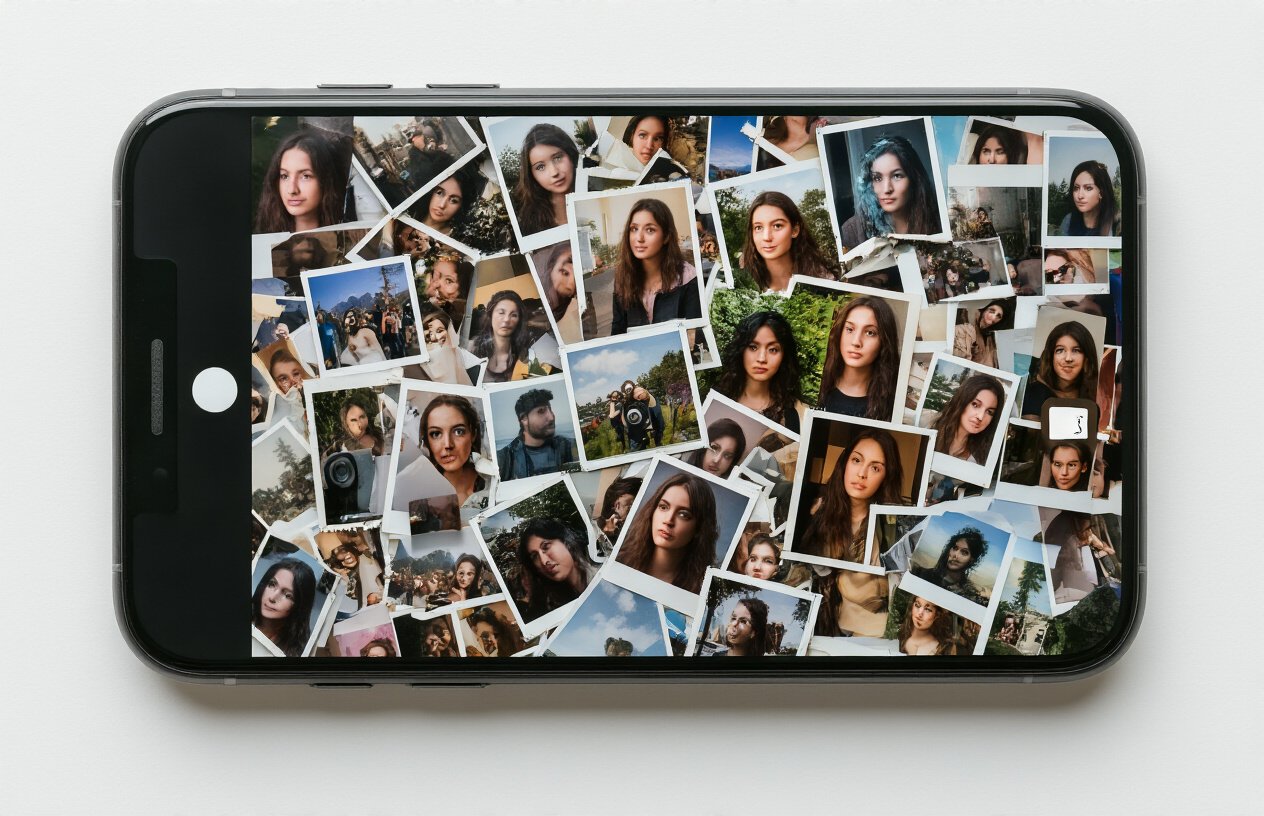
Burst mode is both a blessing and a curse for modern photographers. While this feature captures multiple frames per second to ensure you get that perfect moment, it also floods your camera roll with dozens of nearly identical images. A single burst sequence of a child blowing out birthday candles might generate 30-50 photos, with only subtle differences between each frame.
The real problem isn’t just the storage space these photos consume. When you’re scrolling through your gallery weeks later, you’ll find yourself faced with endless variations of the same moment. You’ll see slightly different facial expressions, marginally shifted poses, or minor changes in lighting – but essentially the same photo repeated ad nauseam. This creates decision fatigue as you try to pick the best shot while manually deleting the rest.
Professional photographers often embrace burst mode during action shots, sports photography, or when capturing moving subjects. However, casual users frequently forget they’ve activated this setting, leading to accidental burst sequences during routine photo-taking. The result is a camera roll that grows exponentially without providing proportional value.
Accidentally Saving Screenshots and Temporary Images
Your phone constantly generates temporary visual content that somehow finds its way into your main photo library. Screenshots of funny memes, directions you needed for five minutes, confirmation numbers, error messages, and random app interfaces accumulate faster than you realize. These images serve momentary purposes but rarely deserve permanent storage alongside your cherished memories.
Social media apps contribute significantly to this clutter. When you save an Instagram story or download a TikTok video, these files often appear in your camera roll mixed with your original photography. Dating apps, messaging platforms, and even shopping applications automatically save profile pictures, product images, and shared content to your gallery without clear organization.
The preview images generated by video editing apps create another layer of confusion. Every time you trim a video or apply filters, the app might save multiple thumbnail versions or progress screenshots. Food delivery apps save photos of your orders, ride-sharing apps capture driver photos, and banking apps store deposit check images – all contributing to the visual chaos in your gallery.
Poor Lighting Conditions Resulting in Blurry Captures
Modern smartphone cameras perform remarkably well in challenging lighting conditions, but they’re not miracle workers. When you’re shooting in dimly lit restaurants, at evening events, or during golden hour without proper stabilization, your camera struggles to capture sharp images. The automatic settings often compensate by extending shutter speeds or boosting ISO levels, which can introduce motion blur or digital noise.
Hand shake becomes more pronounced in low-light situations, especially when your phone’s camera tries to gather more light by keeping the shutter open longer. Even micro-movements from breathing or slight finger tremors can create soft, unusable images. Night mode helps, but it’s not foolproof – and many users don’t realize when their photos turn out blurry until they review them later.
Indoor photography presents particular challenges. Artificial lighting creates color casts and uneven illumination that confuse your camera’s autofocus system. Moving subjects in poor lighting – like pets, children, or people dancing – become nearly impossible to capture sharply without professional equipment. The result is a collection of atmospheric but technically flawed images that take up precious storage space.
Multiple Apps Automatically Saving Photos to Your Gallery
Today’s smartphones run dozens of apps that generate or manipulate images, and many of them default to saving their output directly to your main photo library. Photo editing apps create multiple versions of the same image as you experiment with different filters and adjustments. Each edit might generate a new file, leaving you with five variations of a sunset photo with slightly different saturation levels.
Cloud storage services like Google Photos, iCloud, and Dropbox often sync downloaded images directly to your camera roll. When friends share photos from group events through these platforms, you might end up with duplicate copies – one from the original sync and another from manual downloads. Video calling apps save profile pictures and shared screen captures, while document scanner apps store PDF previews as image files.
Gaming apps increasingly incorporate photo features, allowing players to capture and share screenshots of achievements or gameplay moments. Augmented reality filters from various social platforms save processed images to your gallery, often including multiple versions with different effects applied. Even productivity apps like note-taking software or expense trackers automatically save receipt photos and document scans to your main photo library, blurring the line between personal memories and functional image storage.
How AI Photo Cleaning Tools Work Their Magic
Advanced Algorithms Detecting Visual Similarities Between Images
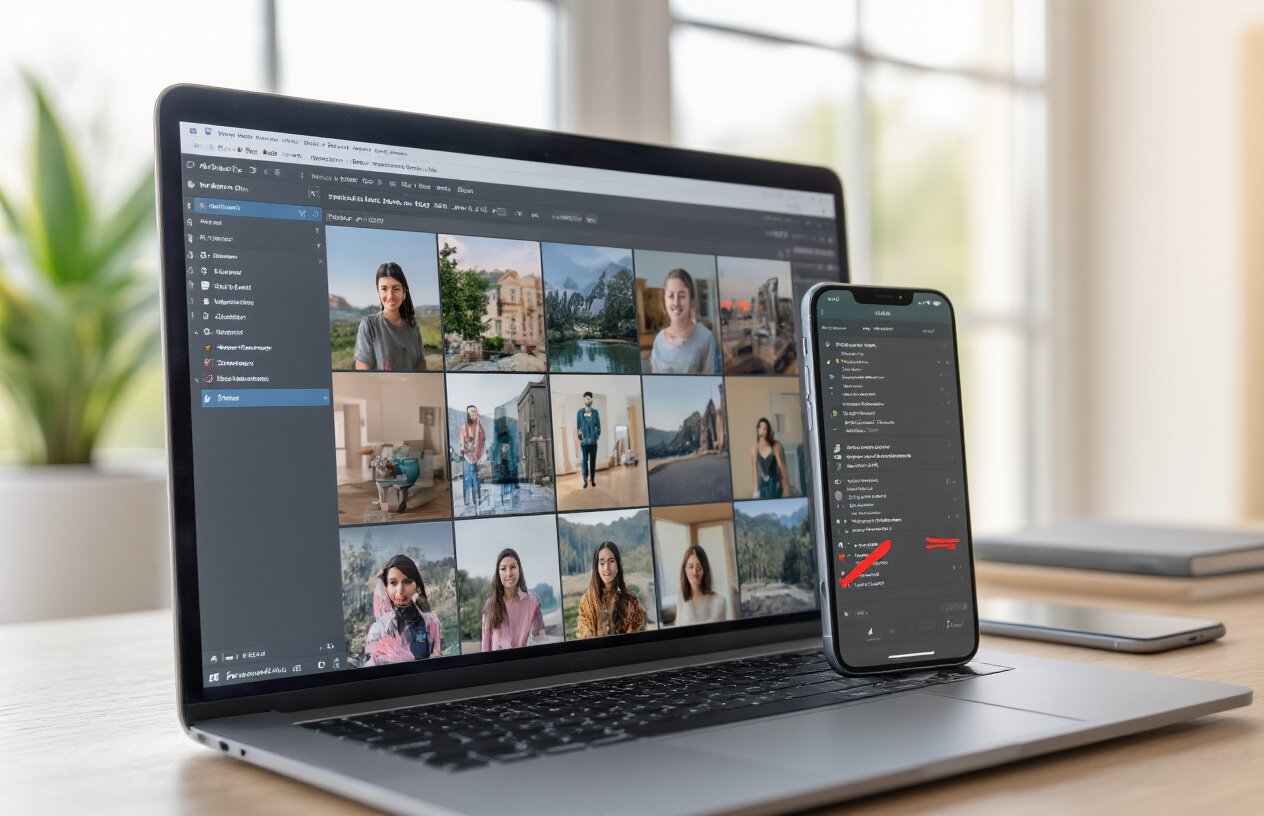
AI photo cleaning tools rely on sophisticated computer vision algorithms that can analyze and compare millions of pixels across your entire camera roll in seconds. These algorithms work by creating unique digital fingerprints for each image, examining factors like color distribution, brightness patterns, edge detection, and geometric shapes within the frame.
The technology breaks down each photo into mathematical representations called feature vectors. When two images share nearly identical feature vectors, the AI flags them as potential duplicates. This process goes beyond simple file comparison – the algorithms can identify duplicate photos even when they’ve been compressed, resized, or saved in different formats.
Modern AI systems use techniques like perceptual hashing and scale-invariant feature transform (SIFT) to recognize similar images that might appear different to basic file comparison tools. For example, if you took multiple shots of the same sunset with slightly different exposures or crops, the AI can still identify these as variations of the same scene.
Quality Assessment Technology Identifying Blur and Poor Exposure
AI photo organizers employ neural networks trained on millions of high-quality and poor-quality images to automatically assess photo quality. These systems analyze multiple technical aspects simultaneously, including sharpness levels, contrast ratios, exposure balance, and noise patterns.
The blur detection algorithms examine edge clarity and focus gradients across different regions of your photos. They can distinguish between intentional artistic blur (like bokeh effects) and accidental motion blur or out-of-focus shots. The AI evaluates factors such as:
- Edge sharpness consistency across the entire image
- Motion blur patterns indicating camera shake or subject movement
- Focus depth analysis to determine if blur was intentional
- Noise-to-signal ratios that affect overall image clarity
Exposure assessment tools examine histogram data, checking for blown-out highlights, crushed shadows, and overall tonal balance. Photos with severely clipped highlights or completely black shadows get flagged for potential deletion, while images with recoverable exposure issues might be marked for editing instead.
Machine Learning Distinguishing Between Intentional and Accidental Duplicates
The most impressive aspect of modern AI photo cleaners is their ability to understand context and user intent. Machine learning models analyze your photo-taking patterns, identifying scenarios where multiple similar photos might be intentional versus accidental.
These systems learn to recognize situations like burst mode photography during action shots, where you might want to keep several similar images to choose the best one later. They can also identify when you’ve taken multiple photos of the same subject with different poses or expressions, understanding that these variations serve different purposes.
The AI considers various contextual clues:
- Time stamps between similar photos (rapid succession often indicates burst mode)
- Facial recognition to identify different expressions or poses in portrait series
- Scene analysis to detect intentional bracketing for HDR photography
- User behavior patterns based on which types of similar photos you typically keep or delete
Smart duplicate detection also factors in image quality differences between similar shots. If you have five nearly identical photos but one has significantly better focus or exposure, the AI will typically recommend keeping the highest-quality version while flagging the others for review or deletion.
Top Features to Look for in AI Photo Organizers

Automatic Duplicate Detection with Similarity Percentages
Modern AI photo organizers excel at spotting duplicates that would take you hours to find manually. The best tools don’t just look for identical files – they analyze visual similarity and assign percentage scores to help you make informed decisions. A 99% match might be two identical shots taken seconds apart, while an 85% match could be the same scene with slightly different angles or lighting.
Look for tools that let you adjust sensitivity thresholds. Some apps allow you to set whether you want to catch only near-perfect duplicates or include similar shots like burst photos and HDR sequences. The smartest systems can even detect when you’ve edited a photo and understand that the RAW file and edited JPEG are related, not true duplicates.
Blur and Quality Analysis with Confidence Ratings
Quality assessment goes beyond simple blur detection. Advanced AI examines focus sharpness, exposure levels, composition, and even facial clarity in portraits. The best tools provide confidence ratings that tell you exactly how certain the AI is about its assessment.
A confidence rating of 95% for blur detection means the system is nearly certain the photo is unusable, while a 60% rating suggests you should review it manually. Smart algorithms can distinguish between intentional motion blur in artistic shots and accidental camera shake. They also consider context – a slightly soft family photo might be flagged differently than a blurry landscape shot.
Safe Deletion Options with Preview Before Removal
Never trust an AI tool that deletes photos without your approval. The most reliable organizers show you exactly what they plan to remove through detailed preview screens. You should see thumbnail grids, side-by-side comparisons, and clear explanations for why each photo was flagged.
Premium tools offer multiple safety nets: temporary deletion folders, automatic backups before cleanup, and the ability to restore accidentally deleted photos. Some apps create smart albums of flagged photos, letting you review everything at your own pace. The delete button should never feel scary when you’re working with irreplaceable memories.
Batch Processing Capabilities for Large Photo Libraries
Processing thousands of photos one by one isn’t practical. Quality AI tools handle massive libraries efficiently through intelligent batch operations. They can analyze entire albums overnight, sort through years of accumulated photos, and handle different file formats simultaneously.
The best batch processors work in the background without slowing down your device. They prioritize recent photos for faster results and can pause automatically when your phone needs resources for other tasks. Look for tools that save progress so you don’t lose work if the process gets interrupted.
Integration with Cloud Storage Services
Your photos live everywhere – phone storage, Google Photos, iCloud, Dropbox. The most valuable AI organizers work across all your platforms seamlessly. They can clean up your iPhone while simultaneously organizing your Google Photos backup, ensuring consistency across all your devices.
Top-tier integration means the tool can access photos from multiple cloud services, apply changes universally, and sync deletions safely. Some apps even help you identify which photos exist in multiple places, preventing you from accidentally keeping duplicates across different storage platforms.
Step-by-Step Guide to Cleaning Your Camera Roll
Backing up important photos before starting the cleanup process
Before diving into any photo cleanup, create a safety net for your memories. The golden rule? Never delete anything permanently without a backup. Start by identifying photos that hold sentimental or important value – family gatherings, special events, work documents, or travel shots you’d hate to lose.
Cloud storage offers the most reliable protection. Upload your entire camera roll to Google Photos, iCloud, or Dropbox before beginning the cleanup. This ensures every photo exists in two places. For extra security, consider backing up to both cloud storage and an external drive.
Create specific albums for categories like “Work Photos,” “Family Events,” or “Travel Memories” during the backup process. This organization makes future photo management much easier. Check your backup twice – scroll through your cloud storage to confirm all photos uploaded successfully. Some AI tools also offer their own backup features, but don’t rely solely on these since they might compress image quality.
Running the AI scan and reviewing suggested deletions
Launch your chosen AI photo cleaning tool and let it analyze your entire camera roll. Most apps take 5-15 minutes to scan through thousands of photos, depending on your device’s processing power and photo count.
The AI will present suggestions in categories:
- Duplicate photos: Near-identical shots taken seconds apart
- Blurry images: Photos with motion blur or focus issues
- Screenshots: Old screenshots you probably don’t need
- Similar shots: Multiple photos of the same subject with slight variations
Review each category carefully before approving deletions. AI algorithms are smart but not perfect – they might flag artistic blur as “poor quality” or mark similar-looking family members as duplicates. Tap through suggested deletions one by one, especially for important events.
Pay special attention to burst mode photos. The AI typically keeps the sharpest shot while suggesting deletion of the rest, but you might want to preserve multiple expressions from a group photo or action sequence.
Fine-tuning settings for optimal results
Customize the AI tool’s sensitivity to match your preferences. Most apps offer adjustable settings that determine how aggressively they identify duplicates and poor-quality photos.
Duplicate detection sensitivity: Set this higher if you want to catch even slightly different photos of the same scene. Lower settings only flag near-identical images.
Blur threshold: Adjust based on your tolerance for imperfect shots. Photography enthusiasts might want higher sensitivity, while casual users can be more lenient.
File size considerations: Some tools let you automatically delete very small, low-resolution images that likely came from messaging apps or web downloads.
Date range filters: Focus cleaning efforts on specific time periods. Start with older photos first – you’re more likely to have forgotten duplicates from months ago.
Enable preview mode to see before-and-after comparisons. This helps you understand what the AI considers “similar” or “blurry” so you can adjust settings accordingly. Run test scans on small batches first to fine-tune preferences before processing your entire photo library.
Maximizing Your Phone’s Performance After the Cleanup

Immediate Storage Space Recovery and Speed Improvements
Once you’ve cleared out duplicate and blurry photos, the performance boost hits immediately. Your device reclaims gigabytes of storage space that was previously locked up in unnecessary files. Most smartphones see a dramatic improvement in app launch times and overall responsiveness when storage usage drops below 80% capacity.
The freed-up space allows your operating system to function more efficiently. Background processes run smoother, and your camera app opens faster since it doesn’t have to index thousands of duplicate files. You’ll notice photos capture quicker, and switching between apps becomes seamless.
Memory management improves significantly too. When storage is cramped, phones often struggle with RAM allocation, causing apps to crash or reload frequently. After cleanup, this pressure releases, and multitasking becomes effortless again.
Enhanced Photo Browsing and Search Functionality
Cleaning your camera roll transforms how you interact with your photo library. Scrolling through photos becomes lightning-fast without duplicate images creating visual clutter. Finding specific memories takes seconds instead of minutes of endless scrolling.
Your phone’s built-in search features work much better with a streamlined library. Face recognition algorithms process faster when they’re not analyzing multiple copies of the same person. Location-based searches return accurate results without confusion from duplicate geotagged photos.
Photo apps load their thumbnail previews almost instantly. The reduced file count means less processing overhead, so browsing feels responsive and smooth. Creating albums, sharing memories, and editing photos all benefit from the cleaner, more organized structure.
Reduced Backup Times and Cloud Storage Costs
Backup efficiency improves dramatically after photo cleanup. Cloud services like iCloud, Google Photos, and Dropbox sync much faster when they’re not uploading countless duplicates. What used to take hours now completes in minutes.
Your cloud storage bills shrink too. Many users discover they can downgrade to cheaper storage tiers after eliminating duplicate photos. A typical cleanup removes 30-50% of photo storage usage, often dropping users from premium plans back to free tiers.
Automatic backup settings work more reliably with fewer files to process. Your photos stay protected without overwhelming your bandwidth or hitting storage limits unexpectedly. Travel photos upload completely before you return home, ensuring nothing gets lost.
Your camera roll doesn’t have to be a chaotic mess of duplicate selfies and accidental screenshots. With AI photo cleaning tools, you can quickly identify and remove the hundreds of blurry, duplicate, and unwanted photos that are secretly eating up your storage space. These smart tools save you hours of manual sorting while giving your phone the performance boost it desperately needs.
Ready to reclaim your storage and speed up your device? Download an AI photo organizer today and watch your camera roll transform from cluttered chaos into a curated collection of your best memories. Your phone will thank you, your photos will be easier to find, and you’ll never have to scroll through endless duplicates again.