Your inbox is packed, deadlines are looming, and you’re spending 2+ hours daily crafting work emails that could be done in minutes. The 10-Minute AI Trick That Writes All Your Work Emails for You using Gemini or Copilot can slash your email writing time by 80% while maintaining professional quality.
This guide is perfect for busy professionals, managers, and entrepreneurs who want to reclaim their time without sacrificing email effectiveness. You’ll discover the exact Gemini/Copilot Method that thousands of professionals use to generate polished emails in seconds.
We’ll walk through setting up your AI email writing system in under 5 minutes, share the master prompt formula that works for any email type, and show you five ready-to-use templates for instant email generation. You’ll also learn advanced personalization techniques and common mistakes that can damage your professional credibility.
Ready to transform how you handle email forever? Let’s dive in.
Why AI Email Writing Changes Everything for Busy Professionals

The Hidden Cost of Writing Work Emails Daily
Most professionals spend 2-4 hours daily crafting work emails, but the real damage goes way beyond time. Think about what happens when you’re mid-flow on an important project and that urgent email request pops up. You stop everything, switch mental gears, and spend 15 minutes composing what should be a simple response.
The cognitive switching cost is brutal. Research shows it takes an average of 23 minutes to fully refocus after an interruption. Multiply that by the 121 emails the average professional receives daily, and you’re looking at massive productivity drain.
Beyond the time sink, there’s the mental energy tax. Each email requires micro-decisions about tone, structure, word choice, and formality level. By afternoon, you’re mentally exhausted from these seemingly small choices, leaving less brainpower for strategic work that actually moves the needle.
Email writing also creates invisible stress. You second-guess your wording, worry about coming across wrong, and spend precious mental bandwidth on communication logistics instead of core work. The cumulative effect? Burnout from death by a thousand tiny decisions.
How AI Eliminates Decision Fatigue from Email Composition
Decision fatigue kills productivity, and email writing is packed with micro-decisions that drain your mental battery throughout the day. Should you start with “Hi” or “Hello”? How formal should the tone be? What’s the best way to phrase this request without sounding pushy?
AI email tools eliminate this decision paralysis by handling the composition heavy lifting. Instead of staring at a blank email wondering how to begin, you simply describe what you need: “Write a follow-up email to a client about the delayed project timeline, keeping a professional but reassuring tone.”
The AI instantly generates multiple options, complete with appropriate openings, clear structure, and professional closing. You’re no longer burning mental energy on word choice or sentence flow. Your brain stays fresh for bigger decisions that actually matter to your career and company goals.
This mental energy preservation compounds throughout the day. When you’re not exhausted from endless email micro-decisions, you show up stronger for meetings, creative problem-solving, and strategic thinking. The ripple effect touches every aspect of your professional performance.
The Productivity Boost You Get from Automated Email Drafting
The numbers tell an incredible story. Professionals using AI for email composition report 60-80% time savings on routine correspondence. What used to take 10 minutes now takes 2-3 minutes, including review and customization.
But speed is just the beginning. AI email drafting creates consistency in your communication style, ensuring every message maintains professional standards even when you’re rushed or stressed. No more cringing at emails you sent during busy periods that sounded abrupt or unclear.
The quality improvement is remarkable too. AI tools draw from vast databases of effective business communication patterns, generating emails that often sound more polished than what most people write under pressure. Your correspondence becomes clearer, more persuasive, and better structured.
| Traditional Email Writing | AI-Assisted Email Writing |
|---|---|
| 10-15 minutes per email | 2-3 minutes per email |
| Inconsistent tone/quality | Professional consistency |
| Mental fatigue by afternoon | Energy preserved for core work |
| Writer’s block delays | Instant draft generation |
The productivity boost extends beyond individual emails. When email composition becomes frictionless, you respond faster, maintain better relationships, and keep projects moving at optimal speed. Your reputation for responsiveness improves while your stress levels drop.
Most importantly, you reclaim 1-3 hours daily for high-value work that actually advances your career goals instead of just keeping up with communication maintenance.
Setting Up Your AI Email Writing Powerhouse in Under 5 Minutes

Installing and configuring Google Gemini for email tasks
Getting Google Gemini ready for your email workflow takes just a couple of minutes. Head to gemini.google.com and sign in with your Google account. The free version handles most email tasks perfectly, but the Pro version gives you faster responses and higher usage limits if you’re planning to generate dozens of emails daily.
Once you’re in, bookmark the interface and consider pinning the tab. You’ll want quick access throughout your workday. Test the basic functionality by asking Gemini to write a simple professional email – this confirms everything’s working correctly.
The real power comes from training Gemini to understand your communication style. Spend two minutes copying and pasting 2-3 of your best-performing emails into separate conversations. Ask Gemini to analyze your tone, structure, and word choice. This creates a baseline for all future email generation.
Setting up Microsoft Copilot integration with your email client
Microsoft Copilot integrates directly with Outlook, making it the smoothest option for Microsoft 365 users. Open Outlook and look for the Copilot icon in your toolbar. If it’s not visible, check that your organization has Copilot enabled or upgrade your personal account to include Copilot features.
The setup wizard walks you through connecting Copilot to your email preferences. Allow it to access your sent items – this teaches the AI your typical communication patterns. You can revoke these permissions later, but the initial learning phase dramatically improves output quality.
For non-Outlook users, access Copilot through the Edge browser or the standalone app at copilot.microsoft.com. Create a dedicated browser bookmark for quick access. The web version works just as well for email generation, though you’ll need to copy and paste between applications.
Configure your default settings to match your professional needs. Set your preferred tone (professional, friendly, or formal), typical email length, and industry-specific terminology. These preferences save time on every email request.
Creating custom prompts for your most common email types
Smart prompt creation transforms AI from a generic writing tool into your personal email assistant. Start by identifying your five most frequent email types: follow-ups, meeting requests, project updates, client responses, and internal communications.
For each type, create a master prompt template. Here’s a proven structure:
Context: “I need a [type] email for [situation]”
Tone: “Professional but warm” or “Direct and concise”
Key points: “Include these specific details: [list]”
Call to action: “End with [specific request]”
Save these templates in a document or note-taking app for instant copy-paste access. For example, your follow-up email prompt might read: “Write a professional follow-up email for a client who hasn’t responded to my proposal in 5 days. Tone should be polite but persistent. Include: mention of previous email date, brief proposal recap, and request for 15-minute call this week.”
Test each template with real scenarios and refine based on results. The goal is creating prompts so effective that you barely need to edit the AI’s output.
Syncing your AI tools with your existing workflow
Integration beats isolation every time. Your AI email tools should fit seamlessly into your current work rhythm, not create additional steps. Start by identifying when you typically handle email – first thing in the morning, after lunch, or end of day.
Create a simple workflow: open your AI tool in one browser tab, your email client in another. Keep your custom prompt templates in a third tab or document. This three-tab setup handles 90% of email situations without switching between multiple applications.
Set up keyboard shortcuts if your browser supports them. Quick access to your AI tools reduces the mental barrier to using them consistently. Consider using browser extensions that allow side-by-side viewing of your email client and AI interface.
For mobile productivity, bookmark your AI tools and practice the mobile interface. While desktop remains ideal for heavy email generation, mobile access helps with quick responses and urgent communications. Most AI tools now offer mobile-optimized interfaces that work surprisingly well for shorter emails.
The key is consistency. Use your AI tools for every email, even simple ones, until the process becomes automatic. This builds the habit while continuously improving your prompt skills.
The Master Prompt Formula That Works Every Time

The Essential Elements Every Email Prompt Needs
Your AI email writing success depends on three core components that work like building blocks. Start with the context wrapper – tell the AI exactly who you are and who you’re talking to. Something like “I’m a marketing manager writing to potential clients” immediately sets the stage.
Next comes the action directive – the specific thing you want the email to accomplish. Don’t say “write an email about the meeting.” Instead, say “write an email requesting a 30-minute meeting to discuss Q4 budget allocation.” The AI needs crystal-clear instructions about your goal.
The information payload is your third essential element. Feed the AI the key facts, dates, names, and details it needs to craft something meaningful. Without this, you’ll get generic fluff that screams “robot wrote this.”
Here’s a winning formula that works across all platforms:
“I’m [your role] writing to [recipient type] to [specific action]. Key details: [bullet points of important info]. Generate a professional email.”
Tone and Style Customization Techniques
Tone controls are your secret weapon for making AI emails sound authentically human. Each platform handles this differently, but the principles remain consistent.
For professional formal tone, add phrases like “maintain executive-level professionalism” or “use corporate communication standards.” When you need something conversational but professional, try “write in a friendly, approachable tone while maintaining respect.”
Industry-specific language makes a huge difference. Tell the AI to “use marketing terminology” for marketing emails or “adopt legal language appropriate for contracts” when dealing with legal matters. The AI will automatically adjust its vocabulary.
Relationship-based customization works wonders. Specify whether you’re writing to a “long-term client,” “new prospect,” “internal team member,” or “senior executive.” Each relationship type triggers different language patterns and levels of formality.
Power phrases for tone control:
- “Sound confident but not pushy”
- “Be direct and action-oriented”
- “Write with warm professionalism”
- “Use collaborative language”
Context Setting for Professional Accuracy
Context is where most people mess up their AI email prompts. The AI needs to understand not just what you’re saying, but the entire situation surrounding your email.
Company context matters enormously. Tell the AI about your company size, industry, and culture. “I work at a 50-person tech startup” creates very different emails than “I’m with a Fortune 500 financial services company.”
Project background prevents awkward misunderstandings. If you’re following up on something, explain what happened before. “This is the second follow-up after our initial proposal was submitted three weeks ago” gives the AI crucial timeline information.
Recipient knowledge helps the AI calibrate its approach. Specify whether your recipient is “familiar with our services,” “completely new to our company,” or “an existing client who knows our processes.”
Industry dynamics add another layer of sophistication. Mentioning “highly regulated industry,” “fast-paced startup environment,” or “traditional corporate culture” helps the AI choose appropriate language and suggestions.
Length and Format Control Methods
Email length control prevents the common problem of AI-generated novels when you need quick messages. Use specific word count targets: “Keep this under 100 words” or “Write approximately 200 words.”
Structure templates give you consistent formatting. Ask for “three short paragraphs” or “bullet points with brief explanations.” The AI will follow these formatting instructions reliably.
Opening and closing preferences maintain your personal style. Specify “start with a brief pleasantry” or “jump straight to business” based on your relationship with the recipient.
For complex emails, use hierarchical formatting: “Start with background, then present three options with pros and cons, end with a clear next step.” This creates scannable, professional emails that busy people actually read.
Mobile optimization is crucial since most emails get read on phones. Add “format for mobile readability with short paragraphs and clear breaks” to ensure your AI-generated emails look good everywhere.
Five High-Impact Email Templates You Can Generate Instantly

Meeting Request Emails That Get Immediate Responses
Most meeting request emails die in the inbox because they sound like corporate robots wrote them. The secret to getting instant responses lies in crafting messages that respect people’s time while clearly communicating value.
Your AI prompt should focus on three key elements: specific purpose, flexible timing, and clear benefit to the recipient. Try this template approach: “Write a meeting request email to [recipient role] about [specific topic] that emphasizes [main benefit to them]. Keep it under 100 words and offer 2-3 time slots.”
The magic happens when you include context about why this meeting matters to them specifically. Instead of saying “Let’s discuss the project,” your AI can generate “I’d like to share three cost-saving opportunities I’ve identified in your department’s workflow that could save approximately 15 hours per week.”
Always include a clear agenda preview and estimated duration. People say yes when they know exactly what they’re signing up for and can see the meeting has structure and purpose.
Follow-up Messages That Maintain Professional Relationships
The art of following up without being annoying requires perfect timing and tone. Your AI can master this by understanding the relationship context and previous interaction history.
For warm follow-ups after meetings, prompt your AI to reference specific discussion points and provide next steps. “Create a follow-up email referencing our conversation about [specific topic] and outline the three action items we agreed upon, with proposed deadlines.”
Cold follow-ups need a different approach entirely. Your AI should focus on providing additional value rather than just asking for a response. “Generate a follow-up email that shares a relevant industry insight or resource related to [original topic] and gently reintroduces my original request.”
The timing sequence matters too. Program your AI to suggest follow-up intervals: initial follow-up after one week, second follow-up after two weeks with added value, and final follow-up after one month with a different angle or offer to connect at a better time.
Project Update Communications That Keep Stakeholders Informed
Stakeholders crave clarity, not confusion. Your AI excels at creating structured updates that prevent the dreaded “What’s the status?” emails from flooding your inbox.
The winning formula involves three sections: progress highlights, current challenges with solutions, and clear next steps with owners. Train your AI with this prompt structure: “Create a project update email for [project name] highlighting [specific achievements], addressing [current challenge] with [proposed solution], and outlining next steps for [time period].”
Visual elements work wonders in AI-generated updates. Ask for bullet points, numbered lists, and progress percentages. “Format this update with clear headings, bullet points for achievements, and a simple timeline for upcoming milestones.”
Regular cadence prevents stakeholder anxiety. Weekly updates for active projects, bi-weekly for steady-state projects, and monthly for long-term initiatives. Your AI can maintain consistent formatting and tone across all updates, making them instantly recognizable and easy to scan.
Client Outreach Emails That Convert Prospects
Converting prospects requires understanding their pain points and presenting solutions that feel custom-crafted for their situation. Your AI can analyze industry-specific challenges and create highly targeted outreach messages.
Start with research-based personalization prompts: “Write a client outreach email to a [industry] [role] addressing their likely challenges with [specific pain point] and introducing [solution] with a soft call-to-action for a brief conversation.”
The subject line determines everything. Your AI should generate options that create curiosity without being clickbait. “Generate 5 subject line options for a cybersecurity consultation email to healthcare CFOs that reference cost savings and compliance benefits.”
Social proof transforms skeptical prospects into interested leads. Include prompts for case studies, testimonials, or industry statistics. “Add a brief success story about helping a similar [company type] achieve [specific result] in [timeframe].”
Internal Team Coordination Messages That Drive Action
Internal emails often get ignored because they lack urgency and clear ownership. Your AI can create messages that cut through inbox noise and motivate immediate action.
Action-oriented language makes all the difference. Instead of “We should consider,” your AI generates “Please complete by [date]” or “I need your input on [specific item] by [time] for [reason].”
The RACI model works perfectly for AI prompts: “Create a team coordination email about [project/task] that clearly identifies who is Responsible, Accountable, Consulted, and Informed for each action item.”
Deadline clarity prevents confusion and delays. Your AI should always include specific dates, times, and consequences. “Write a team update requesting [specific deliverables] by [exact deadline] explaining how delays will impact [specific outcome].”
Use priority flags and clear subject lines that indicate urgency level. “ACTION REQUIRED,” “INFO ONLY,” or “DECISION NEEDED” prefixes help team members process messages quickly and appropriately.
Advanced Techniques for Personalized Email Generation

Using recipient data to customize AI-generated content
Your AI email assistant becomes incredibly powerful when you feed it specific information about your recipients. Start by creating a simple template that includes key data points: recipient’s name, company, role, recent achievements, mutual connections, and any previous conversation context.
Here’s a game-changing prompt structure: “Write a professional email to [Name], who is [Title] at [Company]. They recently [specific achievement/news]. We previously discussed [topic] and they expressed interest in [specific area]. Tone should be [warm/formal/casual] and include a reference to [mutual connection/shared experience].”
The magic happens when you maintain a simple spreadsheet or CRM integration with these details. Your AI can then craft emails that feel genuinely personal rather than generic mass communications.
Adapting writing style based on company hierarchy
Different organizational levels require completely different communication approaches. Your AI needs clear instructions about who you’re addressing to nail the appropriate tone and structure.
For executives and C-level contacts, use prompts like: “Write concisely for a CEO with limited time. Lead with the business impact, include specific metrics, and end with a clear next step. Maximum 3 sentences per paragraph.”
When reaching out to peers or colleagues, try: “Write in a collaborative tone for a fellow manager. Include some context, show mutual respect for their expertise, and suggest partnership opportunities.”
For direct reports or junior team members, your prompt might be: “Write supportively for a team member. Provide clear guidance, encourage questions, and maintain an approachable but professional tone.”
| Hierarchy Level | Email Length | Key Elements | Tone |
|---|---|---|---|
| Executive | 50-100 words | Bottom line, metrics, action items | Direct, respectful |
| Peer | 100-150 words | Context, collaboration, mutual benefit | Professional, friendly |
| Junior | 150-200 words | Guidance, encouragement, clarity | Supportive, clear |
Incorporating industry-specific terminology automatically
Every industry has its unique language, and your AI emails need to speak fluent “industry.” Create industry-specific prompt libraries that automatically inject relevant terminology and concepts.
For tech companies: “Include appropriate technical terms like ‘scalability,’ ‘API integration,’ ‘user experience optimization,’ and reference current tech trends relevant to their business model.”
In healthcare: “Use terminology like ‘patient outcomes,’ ‘compliance requirements,’ ‘clinical workflows,’ and ‘regulatory standards’ naturally throughout the communication.”
For finance professionals: “Incorporate terms like ‘ROI analysis,’ ‘market volatility,’ ‘portfolio optimization,’ and ‘risk mitigation strategies’ where contextually appropriate.”
Build a glossary for each industry you work with. Your prompts can then reference this glossary: “Write using financial services terminology from our approved glossary, focusing on terms related to investment management and client advisory services.”
Managing multiple email personalities for different contexts
Professional chameleons need different email personalities for different situations. Your AI can master this by creating distinct persona profiles that guide tone, structure, and content focus.
Create personality profiles like “Strategic Consultant Sarah” for client-facing communications: analytical, solution-focused, and metrics-driven. Or “Team Leader Tom” for internal communications: encouraging, clear, and action-oriented.
Your prompt structure should specify: “Respond as [Persona Name]: [Key personality traits]. Use their typical communication patterns: [specific examples of how they write/speak]. Address this situation from their perspective and expertise.”
Store these personas as saved prompts or templates. You might have:
- Client Relations Expert: Warm, professional, solution-focused
- Technical Project Manager: Detail-oriented, systematic, deadline-aware
- Sales Professional: Enthusiastic, benefit-focused, relationship-building
- Executive Communicator: Concise, strategic, results-oriented
Switch between these personalities based on your email’s purpose and recipient. Your AI will maintain consistency within each persona while giving you the flexibility to communicate authentically across different professional contexts.
The key is training your AI to recognize which persona fits each situation, then maintaining that voice throughout the entire email conversation thread.
Avoiding Common AI Email Mistakes That Kill Your Credibility
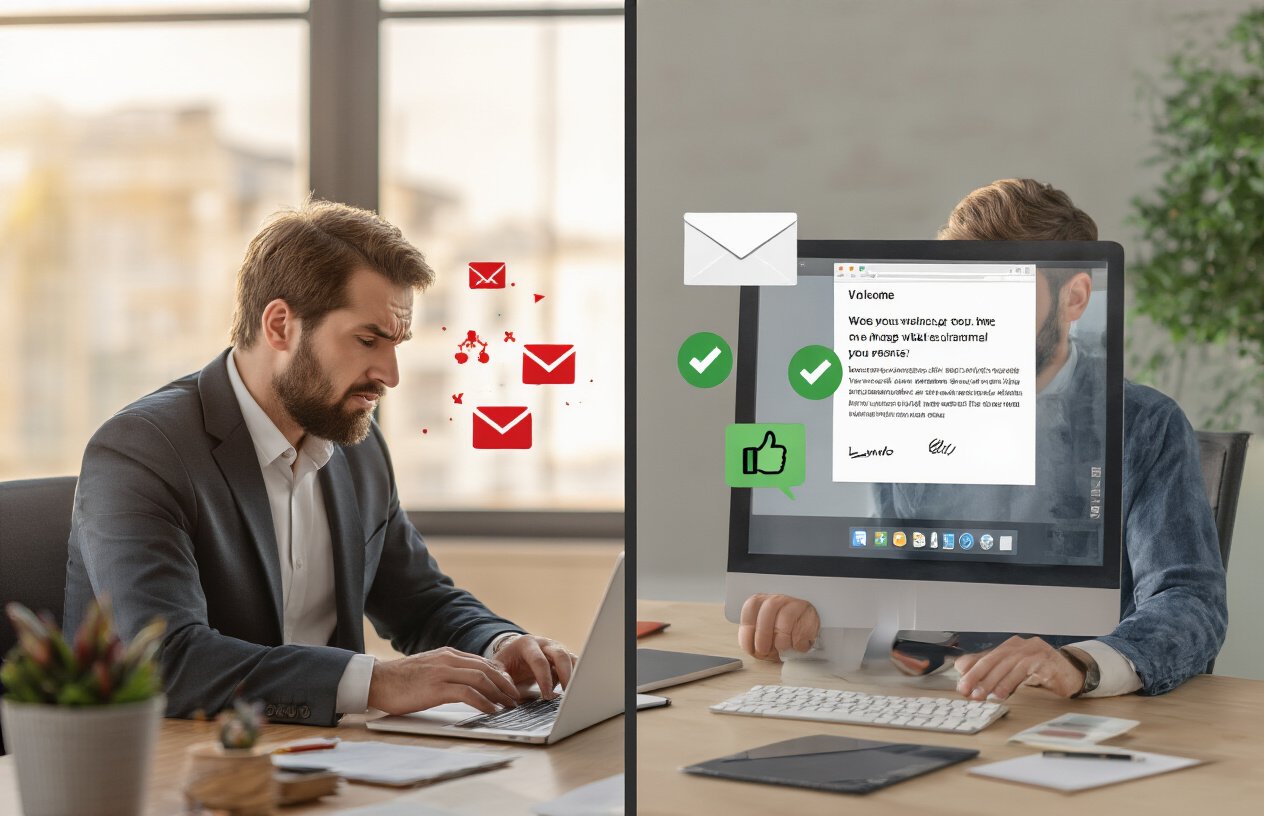
Preventing overly formal or robotic language
Your biggest enemy when using AI for emails? Sounding like a corporate drone who swallowed a thesaurus. AI models love fancy words and stuffy phrases that make you sound like you’re writing a legal document instead of talking to a colleague.
Watch out for these dead giveaways that scream “AI wrote this”:
- “I hope this correspondence finds you well” (Nobody talks like this)
- “Please be advised” (You’re not a lawyer)
- “Per your request” (Just say “You asked for…”)
- “At your earliest convenience” (Try “when you get a chance”)
The fix is simple: read your AI-generated email out loud before hitting send. If it sounds like something you’d never actually say to someone’s face, rewrite it. Ask your AI to use “casual professional” tone instead of “formal business” tone. Better yet, train it with examples of your actual writing style by feeding it a few of your best emails as reference points.
Ensuring accurate recipient names and details
Nothing kills your credibility faster than getting someone’s name wrong or mixing up project details. AI doesn’t have access to your contact list or recent conversations, so it’s flying blind when it comes to specifics.
Create a simple checklist before using any AI-generated email:
- Double-check all names (first, last, and proper spelling)
- Verify company names and job titles
- Confirm project names, dates, and deadlines
- Make sure you’re referencing the right previous conversations
Smart move: Keep a master document with frequently used names, project details, and company information that you can quickly reference when prompting your AI. This saves time and prevents embarrassing mix-ups that make you look unprofessional.
Maintaining authenticity while using AI assistance
The goal isn’t to become an AI puppet – it’s to amplify your own voice. Your personality should still shine through, even when AI helps with the heavy lifting.
Start every AI email session by giving context about your relationship with the recipient. Tell the AI: “This person is my direct manager” or “We’ve worked together for three years and have a friendly rapport.” This helps the AI match the right tone and level of formality.
Add your personal touches after the AI generates the draft. Maybe you always sign off with “Cheers” instead of “Best regards,” or you have a signature way of asking for feedback. These small details keep your authentic voice front and center while still benefiting from AI’s efficiency and structure.
Measuring Your Email Productivity Transformation

Tracking Time Saved Per Email Composition
Start by establishing a baseline for your pre-AI email writing speed. For one week, time yourself writing various types of emails – quick responses, detailed project updates, client communications, and meeting requests. Most professionals spend 3-8 minutes per email depending on complexity.
Create a simple tracking system using a spreadsheet with columns for email type, time spent before AI, time spent with AI, and time saved. Here’s what you’ll likely discover:
| Email Type | Pre-AI Time | With AI Time | Time Saved |
|---|---|---|---|
| Quick reply | 2 minutes | 30 seconds | 75% reduction |
| Project update | 8 minutes | 2 minutes | 75% reduction |
| Client proposal | 15 minutes | 4 minutes | 73% reduction |
| Meeting request | 3 minutes | 45 seconds | 75% reduction |
Track your first 50 AI-generated emails to get accurate data. You’ll probably find that AI cuts your composition time by 60-80% across all email types. The biggest savings come from elimination of writer’s block and instant structure generation.
Monitoring Response Rates and Engagement Metrics
Your email tracking should go beyond time savings to measure actual effectiveness. Poor AI emails that save time but get ignored or deleted defeat the purpose entirely.
Set up these key metrics in your email client or CRM:
Response Rate Tracking:
- Pre-AI baseline response rate (typically 15-25% for cold outreach, 60-80% for internal emails)
- Post-AI response rates for the same email categories
- Time to first response (faster responses often indicate better engagement)
Engagement Quality Indicators:
- Length of responses received (longer replies suggest higher engagement)
- Follow-up questions asked by recipients
- Meeting requests generated from your emails
- Positive sentiment in replies
Create weekly reports comparing these metrics. Well-crafted AI emails often perform better than rushed human-written ones because they’re more structured and clear. If your response rates drop, revisit your prompts and templates – the AI might be making your tone too formal or generic.
Calculating Your Daily Productivity Gains From AI Assistance
Transform your time savings into concrete productivity metrics that demonstrate real business value. The average professional sends 40 emails per day, so even small per-email savings add up fast.
Daily Time Recovery Calculation:
- Average emails sent per day × average time saved per email = daily time recovered
- Example: 40 emails × 3 minutes saved = 120 minutes (2 hours) recovered daily
Weekly and Monthly Projections:
- Daily recovery × 5 work days = 10 hours per week
- Weekly recovery × 4 weeks = 40 hours per month
- That’s an entire work week gained monthly just from email efficiency
Productivity Reinvestment Tracking:
Document what you do with recovered time – strategic planning, client calls, skill development, or creative projects. This shows the compound value of AI assistance beyond simple time savings.
ROI Assessment:
Calculate the dollar value of your recovered time using your hourly rate. If you make $50/hour and save 10 hours weekly, that’s $500 in productivity gains per week, or $26,000 annually. Even accounting for AI tool costs, the ROI is typically 20:1 or higher.
Keep a monthly dashboard showing cumulative hours saved, response rate trends, and productivity reinvestment outcomes. This data becomes powerful ammunition for justifying AI tools to skeptical managers or clients.
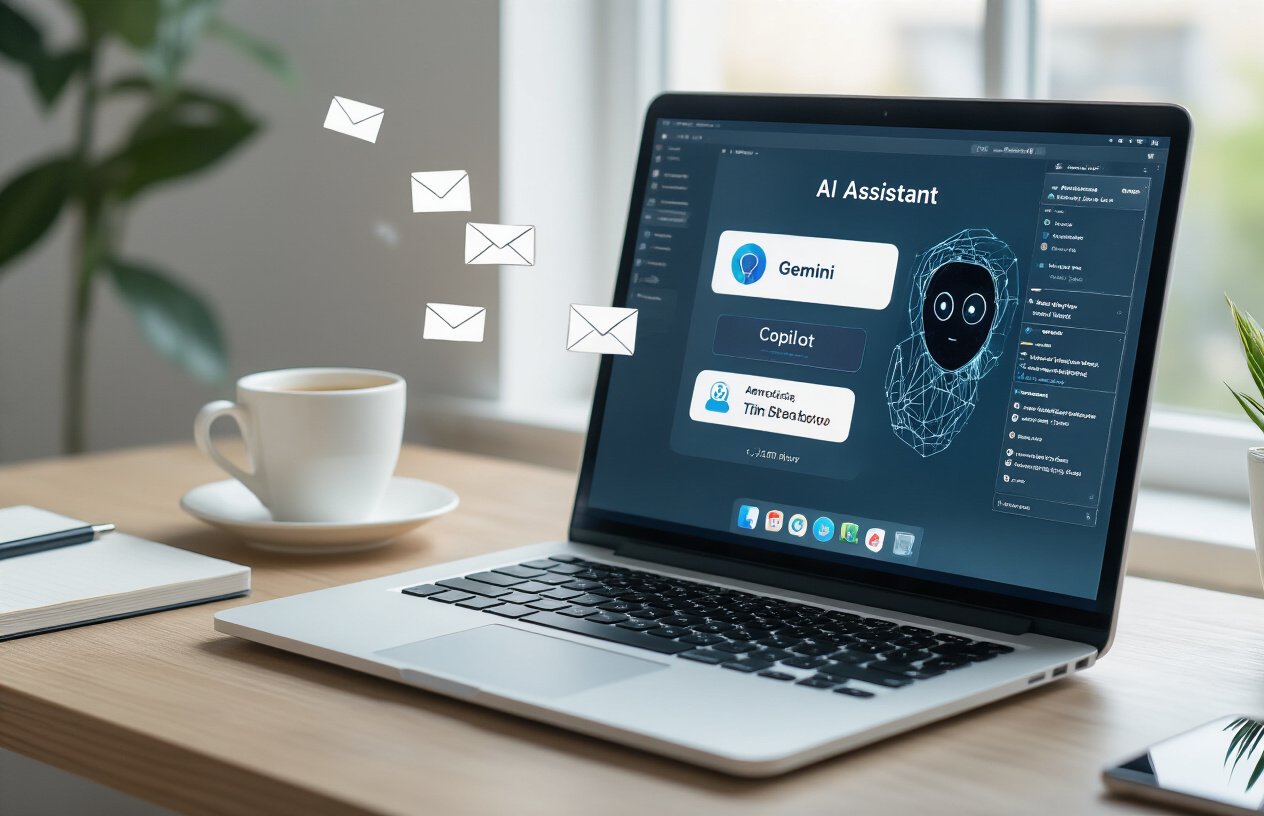
AI email writing isn’t just another productivity hack – it’s a complete game changer for how you handle your inbox. By setting up your AI assistant with the right prompts and templates, you can cut your email writing time by 80% while actually improving the quality and consistency of your messages. The master prompt formula gives you a reliable framework, while the five core templates handle most situations you’ll face daily.
The real magic happens when you start personalizing your AI-generated emails and avoid those credibility-killing mistakes that scream “this was written by a robot.” Once you track your productivity gains, you’ll wonder how you ever managed without this system. Start with just one email type today, master the prompts, and watch as your most time-consuming daily task becomes your secret productivity superpower.