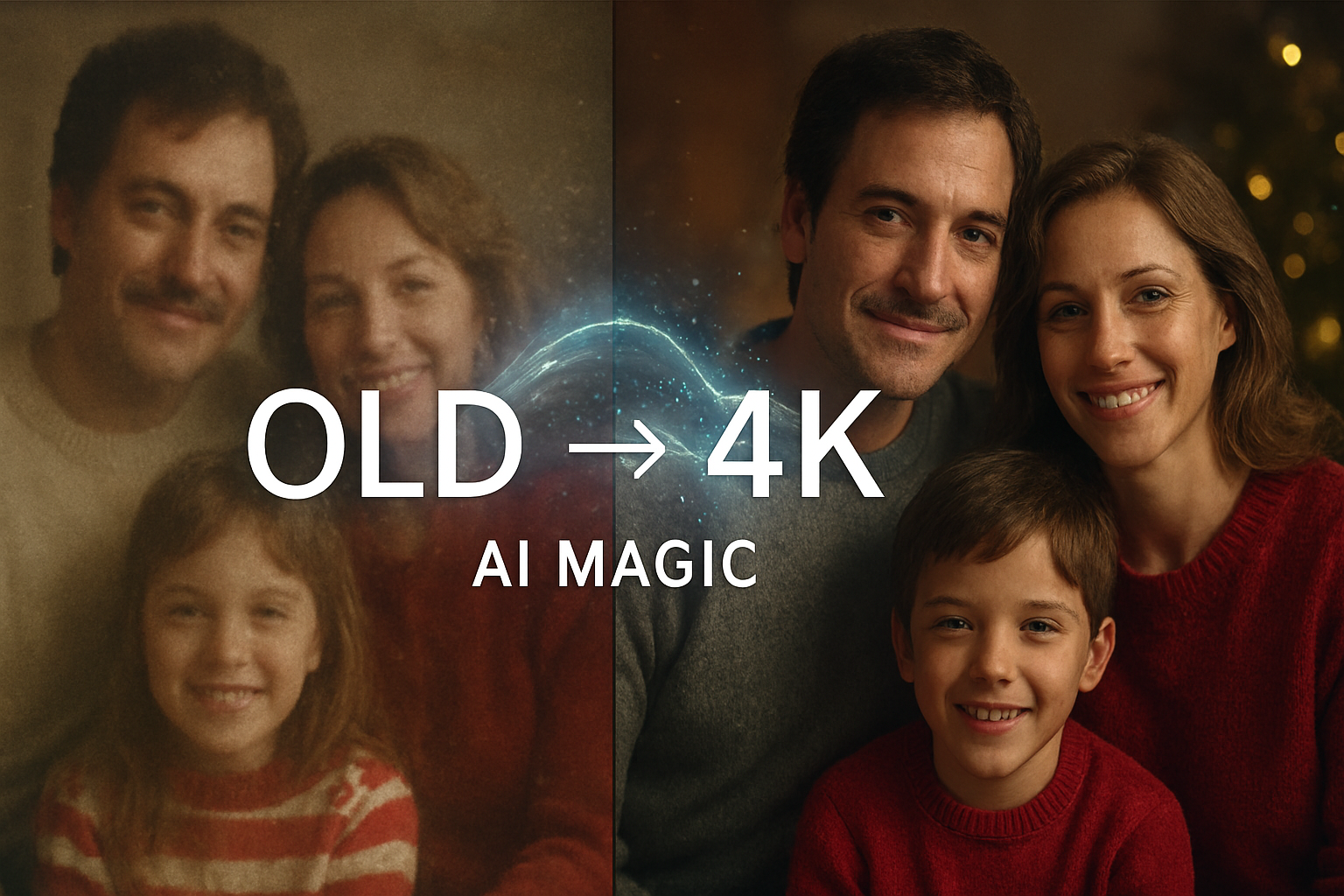
We all have that one dusty shoebox or a forgotten digital folder filled with old holiday memories. Maybe it’s a faded picture of your grandparents at the beach in the 1970s, or a blurry 2004 digital snap from your first family road trip. These photos are priceless, but let’s be honest—they often look a bit “tired.” The colors are washed out, the faces are grainy, and they definitely don’t look great on a modern 4K television or a high-res smartphone screen.
The good news? We are living in an era where “lost” details can be found again. With the arrival of the Gemini 3 Pro Image model (often referred to within the app as Nano Banana Pro), you can do more than just “fix” a photo. You can perform what experts call a “creative upscale.” This isn’t just stretching a small photo to make it bigger (which usually just makes it look like a blurry mess). Instead, the AI actually understands what is in your photo—the sand, the waves, the smiles—and recreates those details at a stunning 4K resolution.
In this guide, I’ll walk you through exactly how to take those old, cherished holiday memories and give them a professional, high-definition second life.
What is Gemini 3 Pro (Nano Banana Pro)?
Before we get into the “how-to,” let’s talk about the “what.” Google recently updated its AI suite, introducing the Gemini 3 series. Specifically, the Gemini 3 Pro Image model is a massive leap forward for anyone who loves photography.
Unlike older AI tools that struggled with faces or made everyone look like a plastic doll, Gemini 3 Pro uses advanced reasoning. It doesn’t just guess what a pixel should look like; it understands context. If you upload a photo of a sunset, it knows how “golden hour” light should hit a person’s face. If it sees a grainy beach, it knows how to add the texture of individual grains of sand and the foam on the waves.
Why 4K Matters
Standard old photos are usually low resolution. If you try to print them or use them as a desktop wallpaper, they look “pixelated” (you see those little square blocks). 4K resolution (roughly $4096 \times 4096$ pixels in the AI world) provides enough detail that you could print the photo on a large canvas or view it on a giant TV, and it would still look crisp and lifelike.
Requirements for 4K Image Enhancement
To get the best results, you’ll need a few things set up first. While basic photo editing is available for free, the high-end 4K “creative upscale” features are usually reserved for the professional tiers.
- A Google AI Pro or Ultra Subscription: To access the Nano Banana Pro engine (which powers the 4K output), you generally need a paid subscription. In the Gemini interface, this is often labeled as Gemini Advanced.
- Access to the Right Platform: You can do this directly through the official Gemini website. Alternatively, if you are a developer or a power user, you can use third-party platforms that integrate the Gemini 3 Pro API, such as GlobalGPT.
- High-Quality Scans (Optional but Recommended): If your old photo is a physical print, try to get the cleanest scan possible. Even a phone “scan” using an app like Google PhotoScan is better than a shaky, glary photo of a photo.
Step-by-Step Guide to Enhancing Your Photos
Ready to see the magic? Follow these steps to transform your old holiday snapshots.
1. Sign In and Select the Model
Head over to the Gemini website. Make sure you are signed in with the account that has your Gemini Advanced subscription.
Once there, look for a model selector (usually at the top or in the settings). You want to ensure you are using the “Thinking” or “Pro” model. This ensures the AI uses its full “brainpower” to analyze your image rather than just giving you a quick, low-res fix.
2. Upload Your Image
In the chat bar, you’ll see a plus (+) or an image icon. Click that and select the old holiday photo you want to restore. It might be a grainy shot of a Christmas morning or a faded polaroid of a summer trip. Once it’s uploaded, don’t hit enter just yet! We need to give the AI its instructions.
3. Write a “Creative Upscale” Prompt
This is the most important part. To get a 4K output, you have to explicitly ask for it. A good prompt tells the AI three things:
- What is in the photo: (e.g., “A family standing in front of the Eiffel Tower”).
- What to fix: (e.g., “Sharpen the faces, remove the grain, and fix the faded colors”).
- The technical goal: (e.g., “Recreate this in photorealistic 4K resolution”).
Pro-Tip Example Prompt: > “I am uploading an old holiday picture of my family on the beach from 1995. Please recreate this in photorealistic 4K resolution. Enhance the skin textures to look lifelike, improve the lighting to mimic a warm sunset, and remove the digital noise and grain. I want the final image to look like it was taken today on a professional camera.”
4. Generate and Refine
Hit enter and let the AI process. Because it is generating a high-resolution 4K file, it might take 20–30 seconds.
Once the image appears, look at it closely. Does it look like your family? Did it get the colors right? The beauty of Gemini 3 Pro is that it is conversational. If the colors are too bright, you can simply type: “This looks great, but can you tone down the saturation? The sky looks a bit too blue.” The AI will then adjust the image while keeping the 4K resolution.
5. Save and Download
Once you are happy with the result, click the download icon. These files are much larger than the originals (often 8–12 MB), so ensure you save them to your Google Photos library or your device’s hard drive.
Understanding “Creative Upscaling” vs. Simple Editing
It is important to understand that Gemini isn’t just “cleaning” your old photo; it is re-imagining it.
Traditional editing (like what you might do in a basic app) just adjusts the brightness or contrast of the pixels that are already there. If a face is a blurry smudge, traditional editing will just give you a brighter, high-contrast smudge.
Creative Upscaling works differently. The AI sees that “smudge,” recognizes it as a human eye, and then draws a high-resolution eye in its place based on its “knowledge” of what eyes look like. This is why the results are so breathtaking—the AI is essentially acting as a digital artist, painting over your old photo with high-definition brushes.
Tips for the Best Results
To truly get that “wow” factor, keep these tips in mind:
- Mention Lighting: AI loves lighting cues. Words like “cinematic lighting,” “golden hour,” or “soft studio light” help the model understand how to add depth to a flat, old photo.
- Face Consistency: If the AI makes the faces look a bit too different from the original people, tell it: “Keep the facial features 100% consistent with the original photo, just increase the clarity.”
- Avoid “Over-Smoothing”: Sometimes AI can make skin look like plastic. If this happens, ask it to “Maintain natural skin pores and textures.”
- Use Reference Images: If you have a modern photo of the same person, you can actually upload both images! Tell Gemini: “Use the facial details from the modern photo to help restore the old one.” Gemini 3 Pro can handle up to 14 reference images at once.
Is it Reliable?
When using AI to restore memories, trust is everything. You want to know that your photos aren’t being used inappropriately and that the technology is reliable.
Google’s Gemini models are built with SynthID, a digital watermark that is invisible to the eye but identifies the image as AI-generated. This is a safety feature that ensures transparency. Furthermore, the Gemini 3 Pro engine is tested against millions of images to ensure it respects human anatomy and real-world physics, making it one of the most reliable tools for photo restoration available today.
A Note on Privacy
When you upload photos to Gemini (especially if you have a paid subscription), Google provides different levels of data protection compared to free versions. Always check your privacy settings to ensure your family photos are being handled the way you want them to be.
Bringing the Past into the Future
Restoring old holiday photos isn’t just about “better pixels.” It’s about seeing the look in a parent’s eyes more clearly or remembering the exact shade of the ocean on a trip from twenty years ago.
By using Gemini 3 Pro and the Nano Banana Pro tools, we finally have the power to bridge the gap between our grainy past and our high-definition present. It turns your smartphone or computer into a time machine, allowing you to preserve your family’s history in a format that will look beautiful for generations to come.