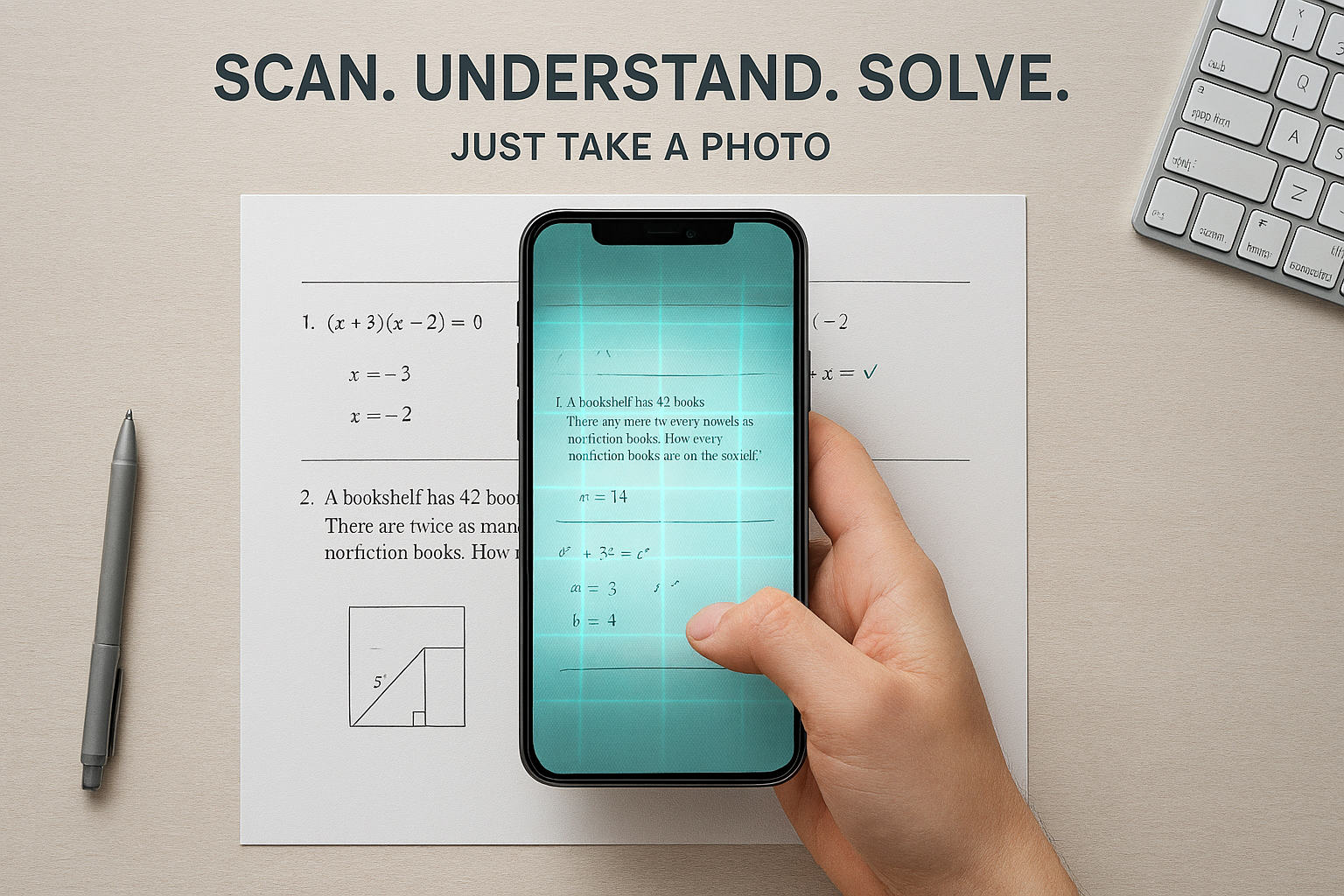
We’ve all been there. It’s 10:00 PM, you’re staring at a worksheet that looks like it’s written in a lost ancient language, and the “simple” example your teacher gave in class feels like a distant memory.
In the past, this meant a frantic Google search or a late-night text to a friend. But the game has changed. The latest “Scan & Solve” updates across platforms like Question AI have turned our smartphones into high-level tutors that don’t just give answers—they actually explain the why.
If you’re ready to stop stressing and start finishing your assignments in half the time, here is exactly how to master the “Scan & Solve” workflow.
Why the ‘Scan & Solve’ Update is a Game Changer
Most people think of AI as a chat box where you type questions. But for students or parents helping with homework, typing out complex math equations or chemistry formulas is a nightmare.
The Scan & Solve update uses a technology called OCR (Optical Character Recognition). It doesn’t just “see” an image; it understands the structure of the problem. Whether it’s a messy handwritten algebra equation or a printed biology diagram, the AI breaks it down into data it can solve instantly.
What makes the new updates different?
- Handwriting Recognition: Early versions struggled with “doctor’s handwriting.” The 2026 updates are significantly better at deciphering cursive and hurried notes.
- Multi-Step Reasoning: Instead of just jumping to $x = 5$, the AI now walks you through the logic, identifying which theorem or formula it’s using.
- Subject Versatility: It’s no longer just for math. You can scan a poem for a literary analysis or a history prompt for a contextual summary.
Step-by-Step: How to Answer Any Worksheet with a Photo
Using Question AI or similar “PhotoSolve” tools is intuitive, but there’s a “right” way to do it if you want the most accurate results.
1. Light it Up (The “Pro” Capture)
AI is only as smart as what it can see. Before you snap the photo, make sure your worksheet is on a flat surface.
- Avoid Shadows: Don’t let your phone cast a shadow over the problem.
- Focus: Tap your screen to ensure the text is sharp. Blurry text is the #1 cause of AI “hallucinations” (when the AI makes up a fake answer because it misread a number).
2. Use the “Crop” Feature Strategically
Don’t try to scan the entire page at once. If your worksheet has 20 questions, the AI might get overwhelmed or provide a condensed summary.
- One at a Time: Use the in-app cropping tool to highlight one specific question or one related set of problems.
- Include Context: If a question refers to “the diagram above,” make sure you include that diagram in your crop!
3. Review the “Reasoning Path”
Once you hit solve, don’t just copy the final answer. The real magic of the update is the Step-by-Step Breakdown.
- Look for the “Show Steps” or “Explain Logic” button.
- If a step doesn’t make sense, many of these apps now allow you to ask a follow-up question like, “Where did that 14 come from?” or “Can you explain this using the FOIL method instead?”
The Best “Scan & Solve” Apps in 2026
While Question AI is a leader in the space, several other tools have specific strengths depending on what you’re studying:
| App | Best For | Standout Feature |
| Question AI | All-in-one / General Study | Incredible at “follow-up” questions and conversational help. |
| Photomath | Hardcore Mathematics | Best for graphing and complex calculus. |
| Socratic (by Google) | Visual Learners | Pulls in YouTube videos and color-coded diagrams for science. |
| Microsoft Math Solver | Free Access | Completely free with no hidden paywalls for step-by-step help. |
The “Golden Rule” of AI Homework Help
I’ll be honest with you: it’s tempting to just “Snap, Copy, and Close.” But if you’re using these tools for a class where you eventually have to take a proctored exam, that strategy will backfire.
The most successful students use Scan & Solve as a reverse-engineering tool.
- Try the problem yourself first.
- If you get stuck, use the scan.
- Compare your work to the AI’s steps to see exactly where you veered off track.
Think of it as a 24/7 tutor, not a “get out of work free” card.
Frequently Asked Questions
Can it solve word problems?
Yes! The 2026 updates are specifically designed for “Natural Language Processing.” You can scan a story about a train leaving Chicago at 60mph, and the AI will extract the variables and set up the equation for you.
Is it considered cheating?
This depends on your school’s policy. Most educators view these apps as “study aids” similar to a graphing calculator or a textbook’s answer key. Always check with your teacher, and never use them during a test!
Does it work for foreign languages?
Absolutely. You can scan a paragraph of Spanish text and ask the AI to “Explain the conjugation of the verbs in this sentence” rather than just translating it.